How to Enable Hearing Aid Features on AirPods Pro and Monitor Hypertension with Apple Watch in New Regions
By
Introduction
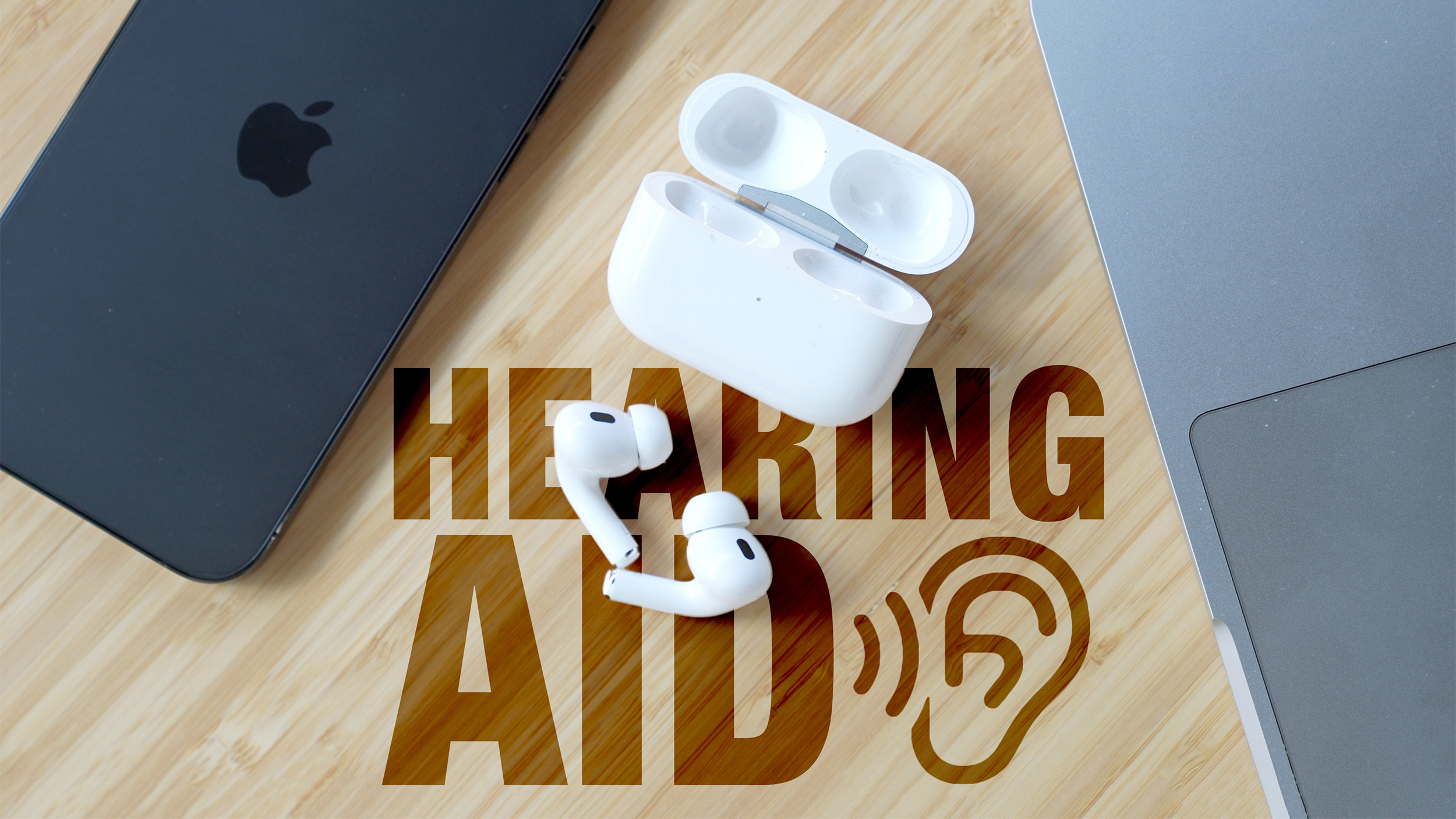
Apple has expanded two key health features to more countries: the Hearing Aid capabilities for AirPods Pro 2 and 3 are now available in Italy, Romania, and Czechia, while Hypertension alerts on Apple Watch have arrived in Israel. This guide walks you through setting up these life-enhancing tools step by step. Whether you want to improve your hearing or keep tabs on your blood pressure, follow these instructions to get started.
What You Need
- For Hearing Aid Feature:
- AirPods Pro 2 or AirPods Pro 3
- iPhone or iPad running iOS 26 / iPadOS 26 or later
- Apple ID signed into iCloud
- For Hypertension Alerts:
- Apple Watch Series 9 or later, or Apple Watch Ultra 2 or later
- iPhone with the latest version of the Watch app
- Heart rate monitoring enabled in Health app
Step-by-Step Guide
Part 1: Setting Up Hearing Aid Features on AirPods Pro
- Step 1: Check Compatibility – Ensure your AirPods Pro are model 2 or 3. Go to Settings > Bluetooth and tap the “i” next to your AirPods to verify the model number. These features are only available in Italy, Romania, and Czechia as of the latest update.
- Step 2: Update Your Device – Make sure your iPhone or iPad runs iOS 26 / iPadOS 26 or later. Go to Settings > General > Software Update and install any pending updates. This ensures the Hearing Aid software loads correctly.
- Step 3: Take a Hearing Test – Open the Health app on your iPhone, tap Browse > Hearing > Take Hearing Test. Follow the on-screen instructions in a quiet environment. The test creates a personalized hearing profile that adapts audio across music, calls, and ambient sounds.
- Step 4: Enable Hearing Aid Mode – After the test, go to Settings > Accessibility > AirPods > Hearing Aid. Toggle on Hearing Aid. Your AirPods will now amplify important sounds and voices while reducing background noise to compensate for mild to moderate hearing loss.
- Step 5: Activate Loud Sound Reduction – In the same menu, enable Loud Sound Reduction. This feature automatically lowers high-decibel noises when using Transparency or Adaptive modes, protecting your ears from sudden loud sounds like construction work or traffic.
- Step 6: Personalize Your Experience – Adjust the amplification level and frequency response in the Hearing Aid settings. You can also create multiple profiles for different environments (e.g., “Office” vs. “Outdoor”). All adjustments sync across your Apple devices via iCloud.
Part 2: Enabling Hypertension Alerts on Apple Watch
- Step 1: Confirm Watch Compatibility – Hypertension alerts are available on Apple Watch Series 9, Series 10, Ultra 2, and later models. Check your watch model by opening the Watch app on your iPhone and going to General > About.
- Step 2: Enable Heart Rate Monitoring – The Apple Watch uses its heart rate sensor to collect data over a 30-day period. Ensure heart rate monitoring is active: on your iPhone, open the Watch app, go to Privacy > Heart Rate and toggle on Heart Rate. Also enable Irregular Rhythm Notifications if you want additional cardiac insights.
- Step 3: Wait for Data Collection – The hypertension alert system requires 30 consecutive days of heart rate readings while you wear the watch normally. No action is needed during this period – the watch automatically records data. Sleep tracking and consistent daily wear improve accuracy.
- Step 4: Receive Alerts – After 30 days, if the watch detects persistent signs of chronic high blood pressure, you’ll get a notification on your Apple Watch and iPhone. The alert will appear in the Health app under Cardiac > Hypertension Notifications. Tap it to view trends and share the data with your doctor.
Tips for Best Results
- For Hearing Aid: Take the hearing test in a quiet room and repeat if your environment changes. Keep your AirPods Pro firmware updated via the Settings > General > About > AirPods menu. For optimal performance, clean the microphone and speaker grills regularly.
- For Hypertension: Wear your Apple Watch snugly on the top of your wrist – not too tight, but secure enough for the sensor to make consistent contact. Avoid extreme temperatures and moisture that might interfere with readings. Remember: these alerts are not a medical diagnosis; consult a healthcare professional for confirmation.
- General: Both features rely on regional availability. If you’re traveling outside Italy, Romania, Czechia, or Israel, the features may not function. Keep your devices updated with the latest iOS and watchOS versions to access any future expansions.
Tags:
Related Articles
- Walmart’s Onn Google TV 4K Streaming Stick: The Affordable Chromecast Alternative That Delivers
- Mastering Prime Video's Clips Feed: A Complete Guide to Short-Form Video Navigation
- The Rise of Agentic Development: Insights from Spotify and Anthropic
- Your Weekend Movie Guide: How to Stream Ready or Not 2 and Greenland 2 Migration
- Spotify Reveals Cutting-Edge Tech Powering 2025 Wrapped: How AI Spots Your Year’s Most Meaningful Listening Moments
- Mastering Stability in Streaming Interfaces: Q&A on Scroll, Layout, and Performance
- Streaming Interfaces Plagued by Scroll Hijacking and Layout Shifts, Experts Warn
- 5 Key Updates on Netflix's Narnia Prequel: The Magician's Nephew Delayed to 2027