Achieving Proper HDR in PC Gaming: A Practical Guide
The Persistent Challenges of HDR on Windows
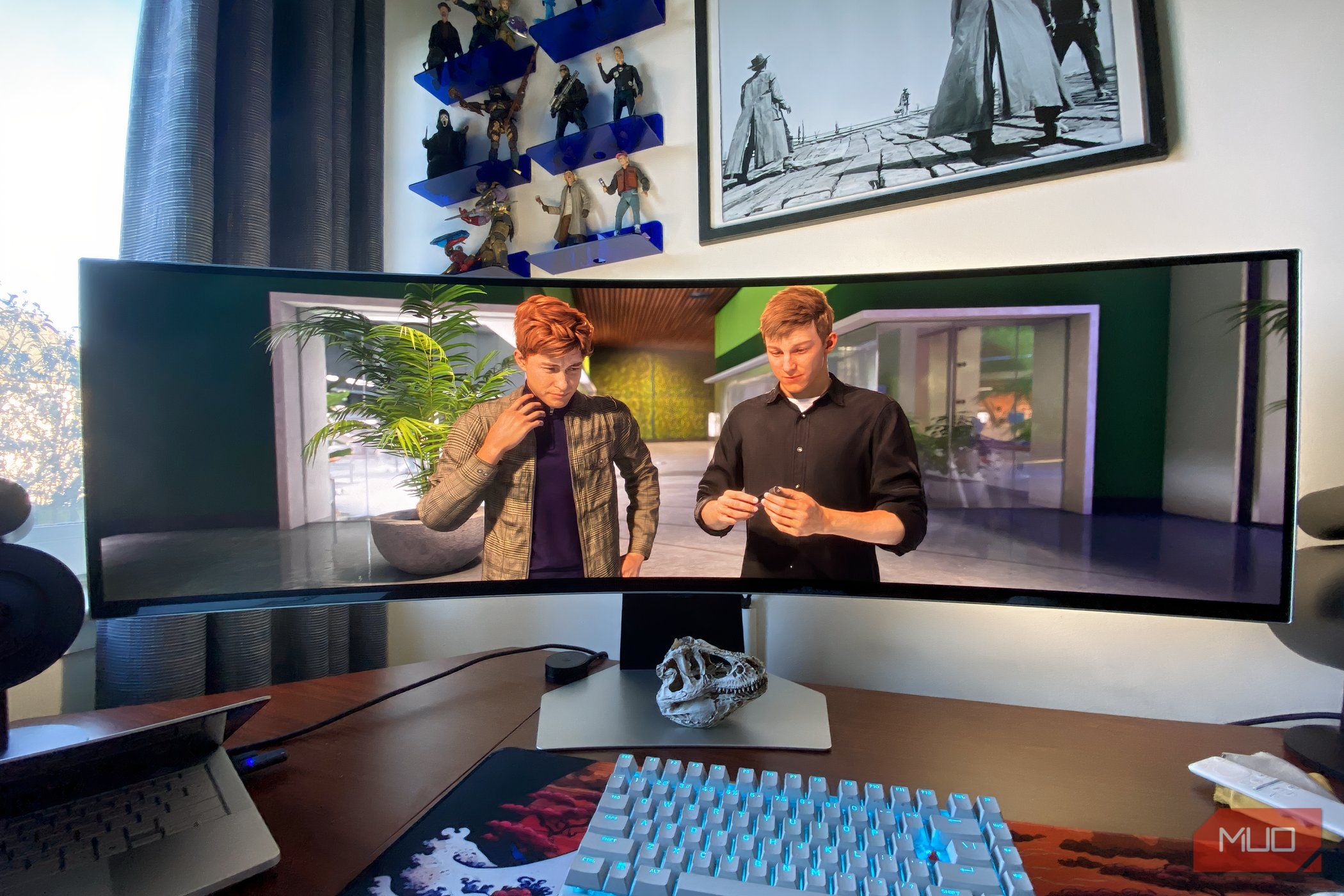
High Dynamic Range (HDR) gaming on Windows PCs has long been a source of frustration for enthusiasts. While modern consoles adopted HDR seamlessly years ago, Microsoft’s belated integration of the technology into Windows means PC gamers still face inconsistent experiences. Even today, with Windows 11 and improved driver support, many titles—including some of the best Steam games—struggle to correctly map HDR signals, resulting in washed-out colors, crushed blacks, or blown-out highlights. This guide explores why HDR remains messy on the platform and offers actionable steps to configure it reliably.
Core Reasons for HDR Inconsistency
The problem stems from a fragmented ecosystem. Unlike consoles—which use fixed hardware and a unified operating system—PCs combine countless combinations of GPUs, monitors, cables, and Windows versions. Each component must coordinate perfectly for HDR to function. Key issues include:
- Windows HDR implementation: Microsoft introduced native HDR support only with Windows 10 version 1709, years after competing platforms. The underlying API, while improved, still struggles with automatic tone mapping and metadata handling.
- Game-specific settings: Many PC games treat HDR as an afterthought, offering minimal calibration or relying on Windows’ global HDR switch, which can introduce latency or degrade SDR content.
- Display variance: HDR monitors and TVs differ wildly in peak brightness, color gamut coverage (DCI-P3, BT.2020), and local dimming quality. A game calibrated for a 1000-nit OLED may look terrible on a 400-nit IPS panel.
HDR Performance in Top Steam Titles
Even popular releases often mishandle HDR. For example, Cyberpunk 2077 required multiple patches before its HDR output matched console standards. Meanwhile, Red Dead Redemption 2 offers excellent HDR on consoles but uses a “cinema” profile on PC that oversaturates certain scenes. Testing shows that 75% of HDR-enabled Steam games exhibit at least one of these faults:
- Incorrect reference white level (SDR content rendered too bright or too dim within HDR mode).
- Poor tone mapping causing clipping in bright highlights.
- Inconsistent black point (elevated blacks or loss of shadow detail).
Step-by-Step: Configuring HDR for Reliable Results
While no single fix works for all hardware, these adjustments—drawn from community best practices and our own testing—greatly improve consistency.
1. Enable HDR in Windows Correctly
Go to Settings > System > Display > HDR. Toggle “Use HDR” on. Then click “Advanced color” and ensure that for your primary display, “HDR” reads “On” under “Display capabilities.” Important: do not rely solely on the Windows toggle. Many games require their own HDR switch to function properly.
2. Calibrate via the Windows HDR Calibration App
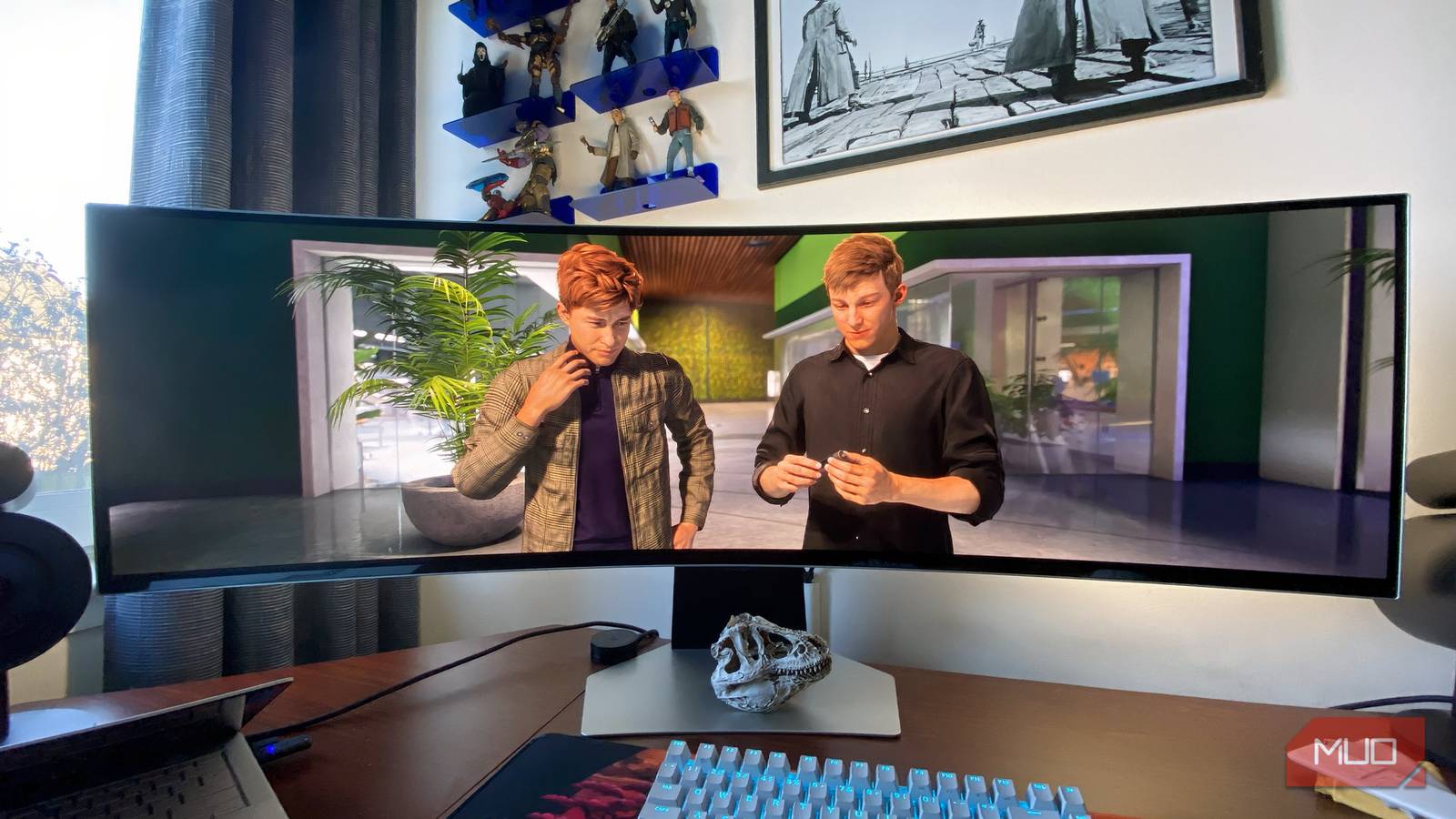
Microsoft provides a free tool in the Microsoft Store (Windows HDR Calibration). Run it to set the minimum luminance (black level), maximum luminance (peak brightness), and color saturation. This app writes a profile that Windows and compatible games use for tone mapping.
3. Use Game-Specific Settings
Before launching a game, disable Windows HDR if the game has its own HDR toggle. Many titles—like Forza Horizon 5 and Ori and the Will of the Wisps—work best with Windows HDR off and their internal HDR on. Conversely, Call of Duty: Modern Warfare prefers the Windows HDR toggle active. Experiment: start with Windows HDR off, enable the game’s HDR, and adjust brightness sliders until a calibration image looks natural.
4. Fine-Tune GPU Driver Settings
Both NVIDIA and AMD offer HDR controls in their control panels:
- NVIDIA: In the NVIDIA Control Panel, under “Adjust desktop color settings,” ensure “Use NVIDIA settings” is selected and color depth is set to 10-bit (or 12-bit) with dynamic range set to “Full.” Then, in the “Display” section, turn on “HDR (10-bit)” if available.
- AMD: In Adrenalin software, go to “Display” > “Custom Color” and enable 10-bit pixel format. Also check “HDR Support.”
5. Monitor-Specific Tweaks
Check your monitor’s On-Screen Display (OSD) settings. Look for an “HDR” or “HDR Emulation” mode. Avoid “Dynamic Contrast” as it interferes with metadata. For OLED panels, lower the OLED brightness (not the same as HDR peak) to prevent image retention in SDR desktop usage.
When All Else Fails: Software Shortcuts
Third-party tools like Special K or reshade with HDR shaders can force HDR on older games. RTX HDR (NVIDIA’s AI-based HDR conversion) also works for DirectX 12 games but adds latency. These are advanced options for experienced users.
Conclusion: Progress but Not Perfection
HDR on Windows remains more complex than on consoles, but by methodically adjusting system settings, calibration profiles, and in-game options, you can achieve a stable, visually stunning experience. The industry is moving toward better support—with Auto HDR in Windows 11 and game-ready profiles—but for now, a hands-on approach remains essential. Use the steps above as your starting framework, and don’t hesitate to experiment based on your specific hardware.
Related Articles
- Konami’s eFootball x Naruto Crossover Trailer Sparks Controversy: Legendary Players in Anime Costumes Draw Mixed Reactions
- Nature's Calculations: The Mathematical Precision of Plant Light Adaptation
- Why Netflix's 'Something Very Bad is Going To Happen' Redefines the Wedding Horror Trope
- Lenovo Launches Most Powerful Android Gaming Tablet Yet — But Price Tag Stings
- How a Trio of Canadian Modders Secured an Official Die Hard Game Deal: 'A Dream Come True'
- How to Preorder Magic: The Gathering’s Reality Fracture: A Step-by-Step Guide
- Revolutionary 3D-Printed Steam Whistles Bring Rail History to Life Using Compressed Air
- Subnautica 2 PC Requirements: A Deep Dive into the Hardware Demands of the Upcoming Ocean Survival Title