Mastering BleachBit TUI: A Step-by-Step Guide to Using the New Text Interface
Introduction
System cleanup utilities are a matter of personal preference on any platform. On Linux, tools range from simple command-line scripts to full graphical applications, handling everything from browser caches and old package archives to secure file deletion and free space wiping. Among these, BleachBit has long been a popular free and open-source option for both Linux and Windows. Now, its developers have released an early alpha of a text-based user interface (TUI) that brings the power of BleachBit to terminal users. This guide walks you through using the new BleachBit TUI step by step, from installation to performing your first cleanup.
What You Need
- A Linux distribution (tested on Ubuntu) or Windows system
- Python 3 installed (for Linux users running from source)
- Sudo or administrator privileges to clean system files
- Optional: Git (to build from source on Linux)
- Basic familiarity with the terminal or command prompt
Step-by-Step Guide
Step 1: Obtain BleachBit TUI
On Linux, the easiest way is to run the TUI directly from the source repository. Open a terminal and execute:
git clone https://github.com/bleachbit/bleachbit.git
cd bleachbit
python3 bleachbit_tui.py
If you prefer a more permanent installation, follow the official quick-start instructions for Ubuntu, or build from source. On Windows, the TUI ships as both an installer and a portable package, compiled as a native 64-bit binary. Download from the BleachBit website and run the executable.
Step 2: Launch with Appropriate Privileges
To clean system-wide data (e.g., package caches or logs), you need elevated privileges. On Linux, launch the TUI with sudo:
sudo python3 bleachbit_tui.pyWithout sudo, you may encounter permission errors when attempting deletion. On Windows, run as Administrator if needed.
Step 3: Navigate the Interface
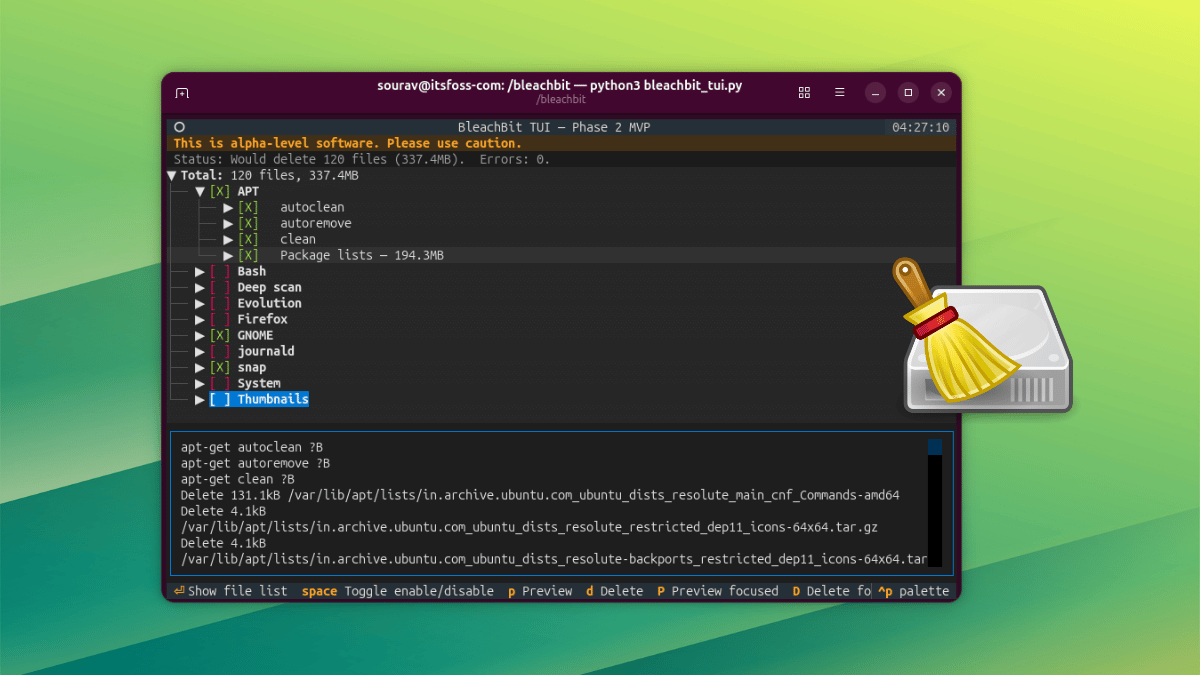
The TUI is keyboard-driven and simple to navigate. Use the arrow keys to move between categories. Press the Spacebar to toggle a cleaning option on or off. To expand a category and see its file list, press Enter. Press Enter again to collapse it. The interface is clean, with a focus indicator highlighting the currently selected item.
Step 4: Preview What Will Be Cleaned
Before committing to deletion, you can preview the impact. Two preview options are available:
- Press p (lowercase) to run a full preview across all selected items.
- Press P (uppercase) to preview only the focused component.
Use Shift or Caps Lock to produce uppercase input. A preview shows files that would be deleted, helping you avoid accidental removals.
Step 5: Perform Deletion
When you’re ready to clean, press d (lowercase) to delete everything selected. Use D (uppercase) to delete the focused component only. After pressing, you’ll need to confirm by typing Y. Once complete, a dialog appears in the bottom-right corner showing the number of files deleted and space recovered. If deletion fails, ensure you have the necessary privileges (Step 2).

Step 6: Use the Palette Menu
The palette menu is accessible via Ctrl+P. From there, you can:
- Search for commands
- Maximize or minimize a component
- Quit BleachBit
- Save a screenshot of the TUI
- Open a keys/help side panel
This menu makes advanced features like theme changes and mouse interaction settings easily reachable.
Step 7: Customize and Understand Settings Inheritance
BleachBit TUI shares its backend with the regular GUI. All your existing settings—selected cleaning options, keep lists, custom cleaning lists, and cookie keep lists—are automatically picked up. You can change display themes from the palette menu. The TUI also supports limited mouse interaction, including click and scroll wheel, alongside keyboard navigation. On Windows, the TUI is a native 64-bit binary, whereas the stable GUI/CLI are 32-bit; this may affect compatibility with some plugins.
Tips for a Smooth Experience
- Expect it to break: This is an alpha release. Bugs and incomplete features are likely. Test on non-critical systems first.
- Always preview first: Use the preview options (p or P) to avoid deleting important files.
- Use sudo wisely: Only run with elevated privileges when necessary; for user-specific caches (e.g., browser cache), you may not need sudo.
- Mouse and scroll wheel: The TUI supports mouse scroll in some terminals. If you prefer mouse navigation, enable it in your terminal emulator.
- Themes: Experiment with different display themes available in the palette menu to find one that suits your terminal.
- Check for updates: As the TUI is under active development, pull the latest source code frequently on Linux with
git pull.
Related Articles
- Amazon Sets 'Rings of Power' Season 3 Premiere for November 2026
- Is Now the Right Time to Buy Apple's Entry-Level iPad? A Detailed Guide
- How to Build Your First AI Agent with Microsoft Agent Framework
- 10 Transformative Ways Simulation-First Manufacturing is Revolutionizing Industry
- How to Build an AI Operating Model for Enterprise Success: A Step-by-Step Guide
- How to Implement Docker AI Governance for Safe Agent Autonomy
- 10 Ways AI Is Revolutionizing Software Development in 2026
- Mastering Claude Code: Your Ultimate Beginner's Guide to AI-Powered Terminal Coding